NewExtra server protection with Measured Boot & UKI images.View Measured Boot
BlogDocumentationFAQNo Third-Party CookiesContact Us
  • Pricing
Log inSign up
Cloud VPSVDSMemory-Optimized VDSStorage-Optimized VDSWindows VPSBitcoin VPSDDoS ProtectionPrivate Networking (VPC)Floating IPsAdditional Server SupportMicrosoft LicensesDatacenterNetworkDocumentationFAQNo Third-Party CookiesConfidential ComputingSelf-Hosted VPNBlogAboutBrand GuidelinesAffiliatesContact UsLegal & Compliance

Products

  • Pricing
  • Cloud VPS
  • VDS
  • RAM-Optimized VDS
  • Storage-Optimized VDS
  • Windows VPS
  • Bitcoin VPS
  • DDoS Protection
  • Private Networking (VPC)
  • Floating IPs
  • Microsoft Licenses
  • Additional Server Support

Explore

  • Documentation
  • Developers API Docs
  • FAQ
  • Datacenter
  • Network
  • Looking Glass
  • Confidential Computing
  • Cookie Policy
  • Self-Hosted VPN

Company

  • Blog
  • Contact Us
  • About Us
  • Brand Guidelines
  • Affiliates

Legal & Compliance

  • Terms of Service
  • Privacy Policy
  • Data Processing Agreement
  • Acceptable Use Policy
  • Microsoft Software Terms of Use
  • Refund Policy
  • Report Abuse

Products

  • Cloud VPS
  • VDS
  • RAM-Optimized VDS
  • Storage-Optimized VDS
  • Windows VPS
  • Bitcoin VPS
  • DDoS Protection
  • Private Networking (VPC)
  • Floating IPs
  • Microsoft Licenses
  • Additional Server Support
Pricing

Explore

  • Documentation
  • Developers API Docs
  • FAQ
  • Datacenter
  • Network
  • Looking Glass
  • Confidential Computing
  • Cookie Policy
  • Self-Hosted VPN

Company

  • Blog
  • Contact Us
  • About Us
  • Brand Guidelines
  • Affiliates

Legal & Compliance

  • Terms of Service
  • Privacy Policy
  • Data Processing Agreement
  • Acceptable Use Policy
  • Microsoft Software Terms of Use
  • Refund Policy
  • Report Abuse

© VPS.BG Ltd. 2026 · All rights reserved!

Made with passion in Bulgaria · VAT ID: BG203144520

Contents

  • Step 1: Log into your VPSBG account
  • Step 2: Navigate to your services from the dashboard
  • Step 3: Find the server for which you want to activate automated backups
  • Step 4: Arrival at the given Service’s page

Subscribe to Our Newsletter

Join 5000+ subscribers and receive helpful content, deals and more! We promise no spam - 100% great content. Unsubscribe anytime.

Share Article

#Tutorial
  1. Documentation
  2. /
  3. #Tutorial
  4. /
  5. How to activate automatic backups for your VPSBG server

How to activate automatic backups for your VPSBG server

Published: 28 September 2021 • Updated: 02 October 2025 • 2 min read

#Tutorial#VPSBG#Security

Backups are an important feature that can store information and data about your system and files for a longer period of time, allowing you to easily restore your server to a previous state. Therefore, it is vital that you know how to use this feature. That is why in this step-by-step tutorial we will teach you how to activate automatic backups for your VPSBG server.

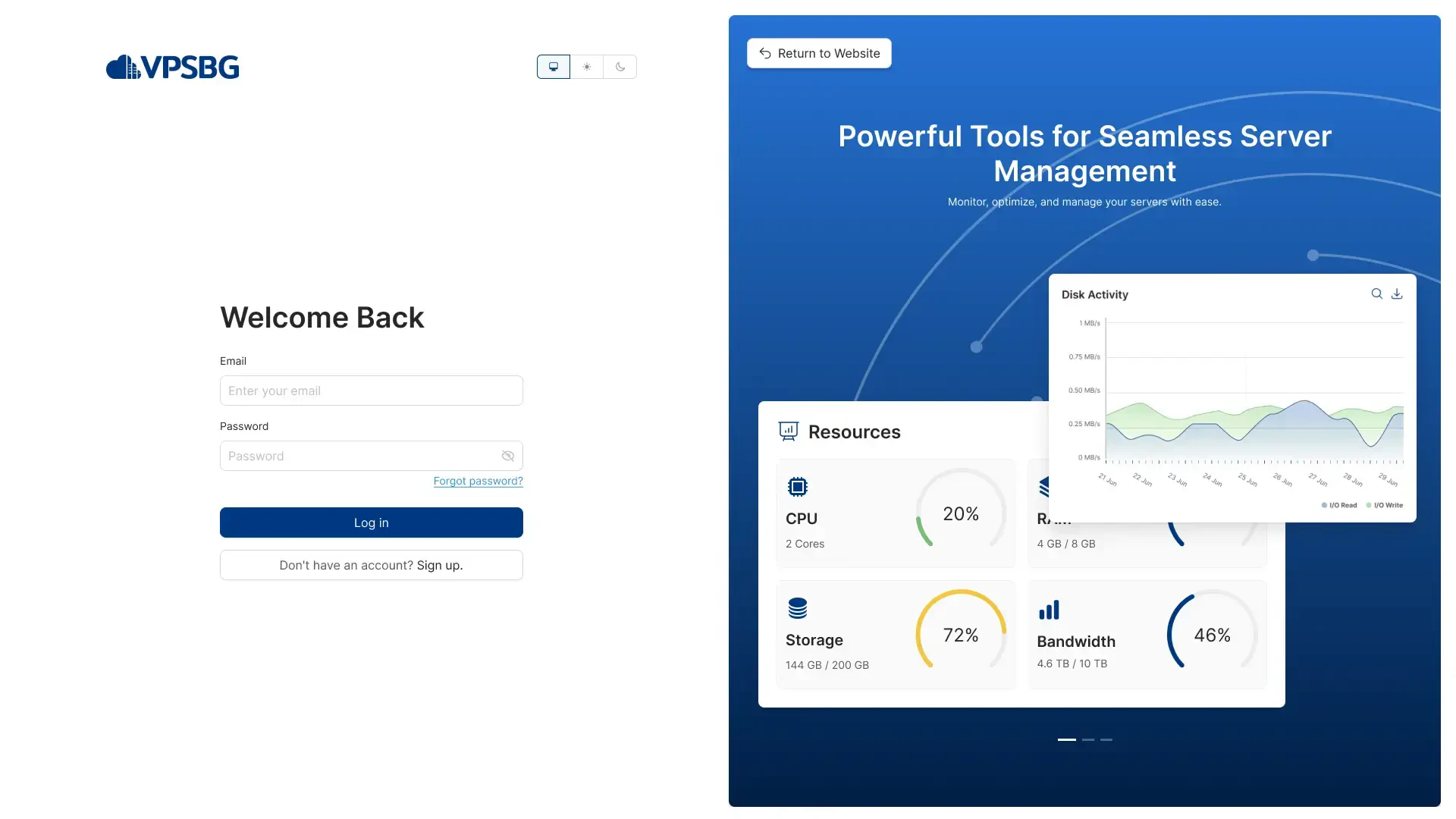
Step 1: Log into your VPSBG account

Start by logging into our Console by entering your email and password.
login

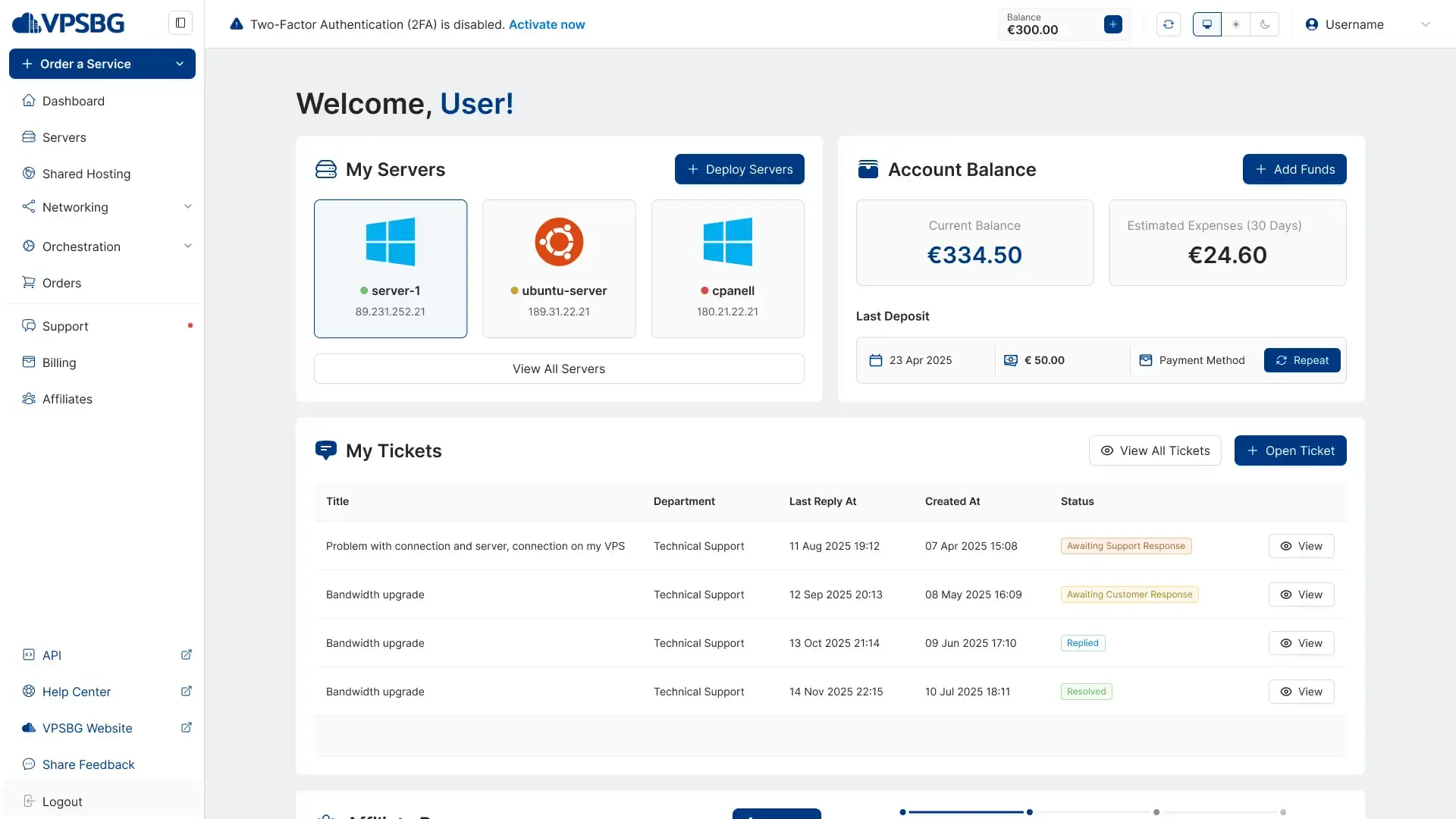
Step 2: Navigate to your services from the dashboard

Once you have successfully logged in, you will be presented with your dashboard, the appearance of which should be like so:
dashboard

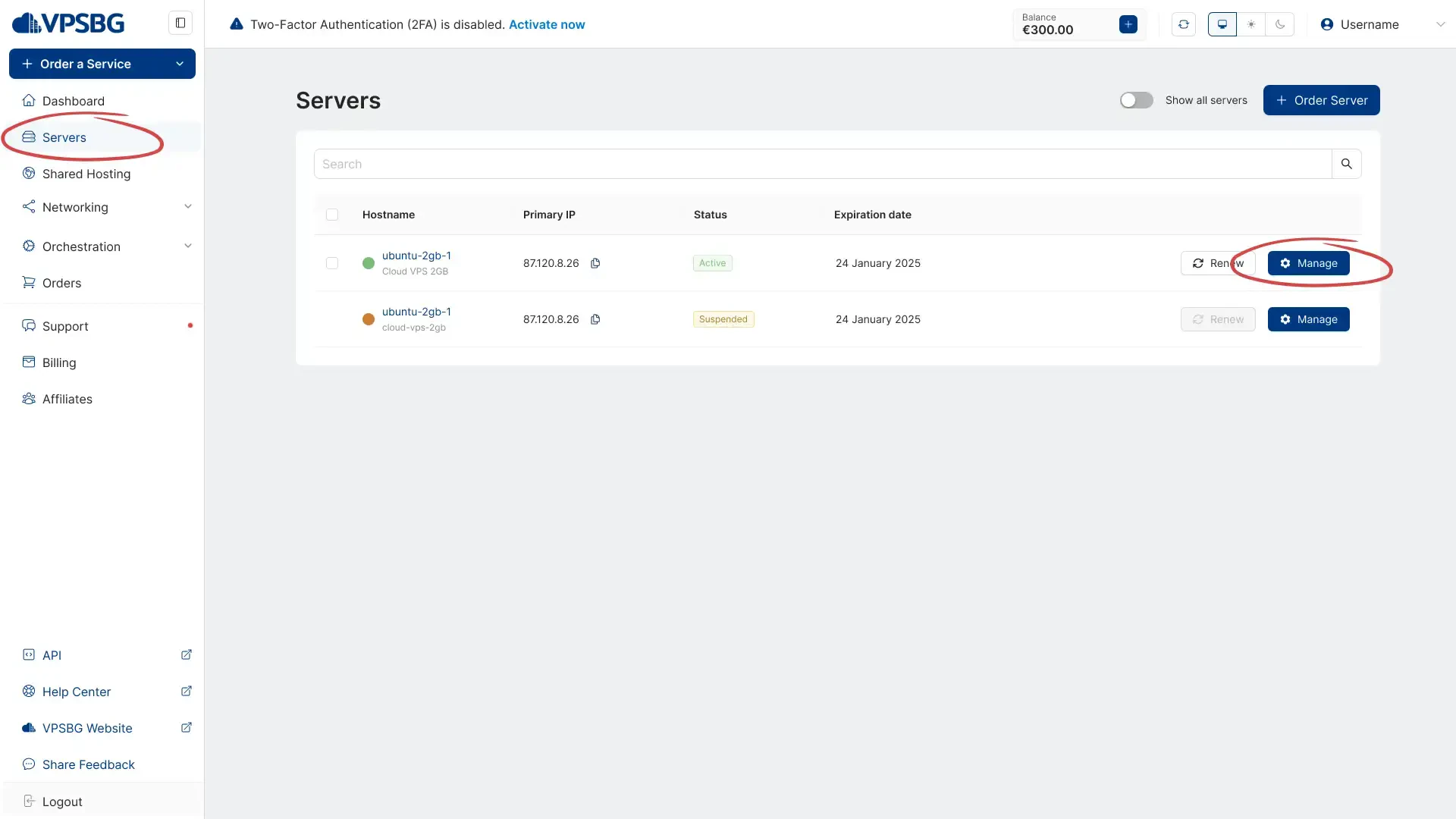
From here, click on the “Servers” button from the menu on the left. This will take you to a page with a list of all of your services.

Step 3: Find the server for which you want to activate automated backups

Having arrived at the servers page, you will now want to find the server you would like to activate automatic backups for. You will see a green dot in front of your active servers alongside the server hostname and IP addresses attached to the server.

The next step is to simply click on the “Manage” button for your desired server.
manage server

Step 4: Arrival at the given Service’s page

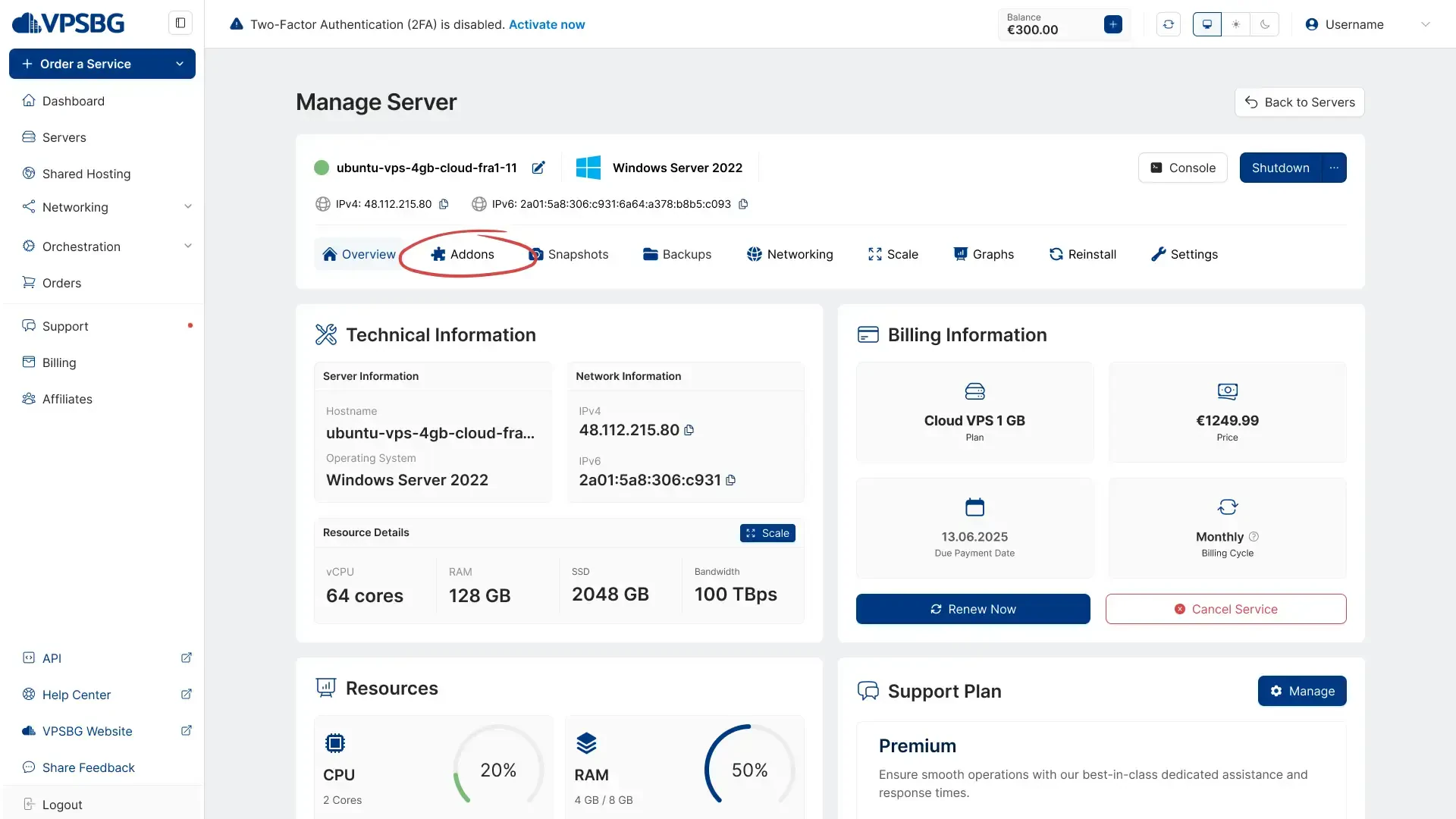
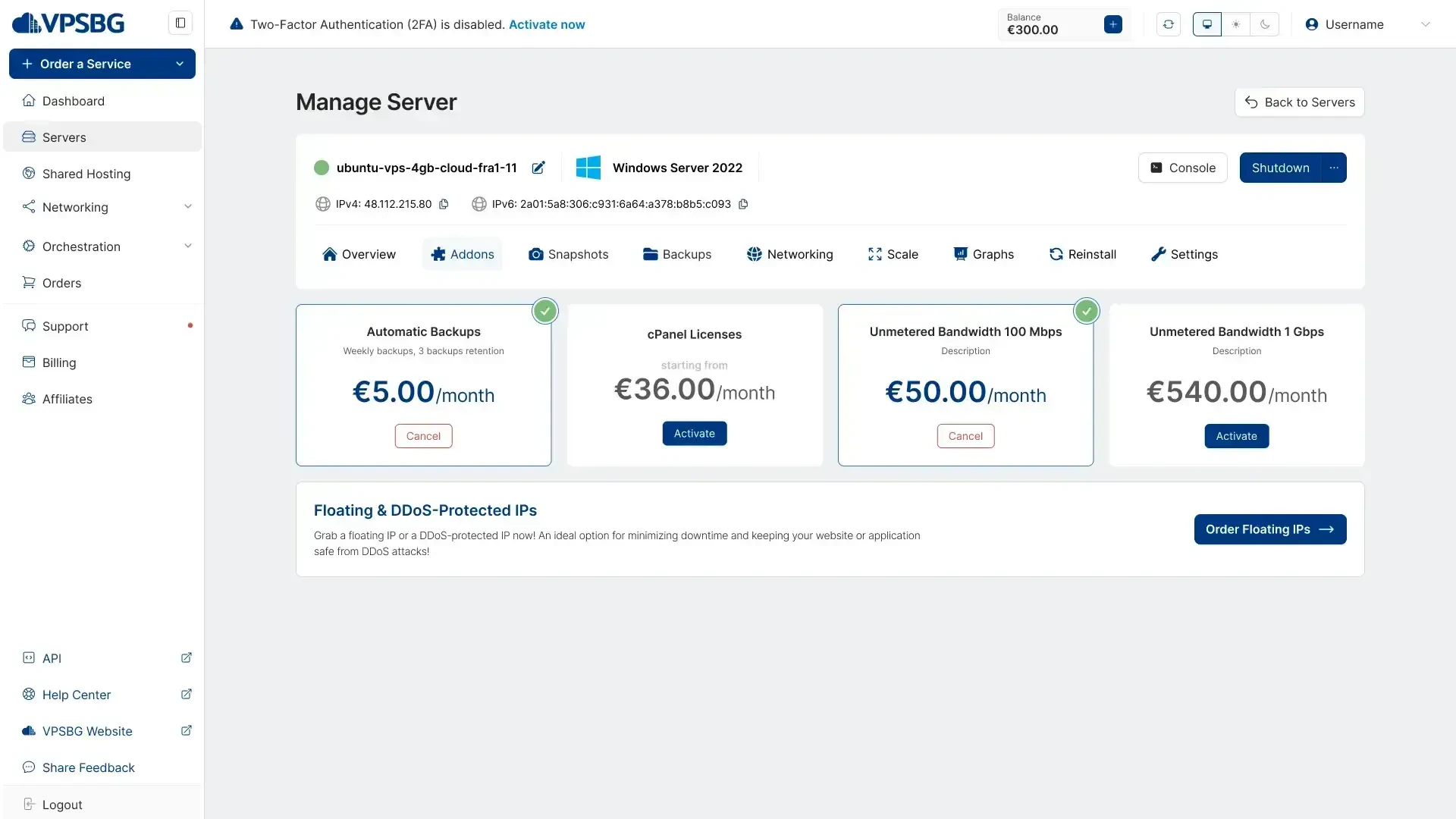
Clicking on a given service will bring you to its management page. Next, simply navigate to the ‘Addons’ tab.
addons tab

This page contains all of the extra features that you can purchase for your server with some operating systems like Windows Server offering a wider range of options. From here, click on the 'Activate' button in the 'Automatic Backups' section.
backups

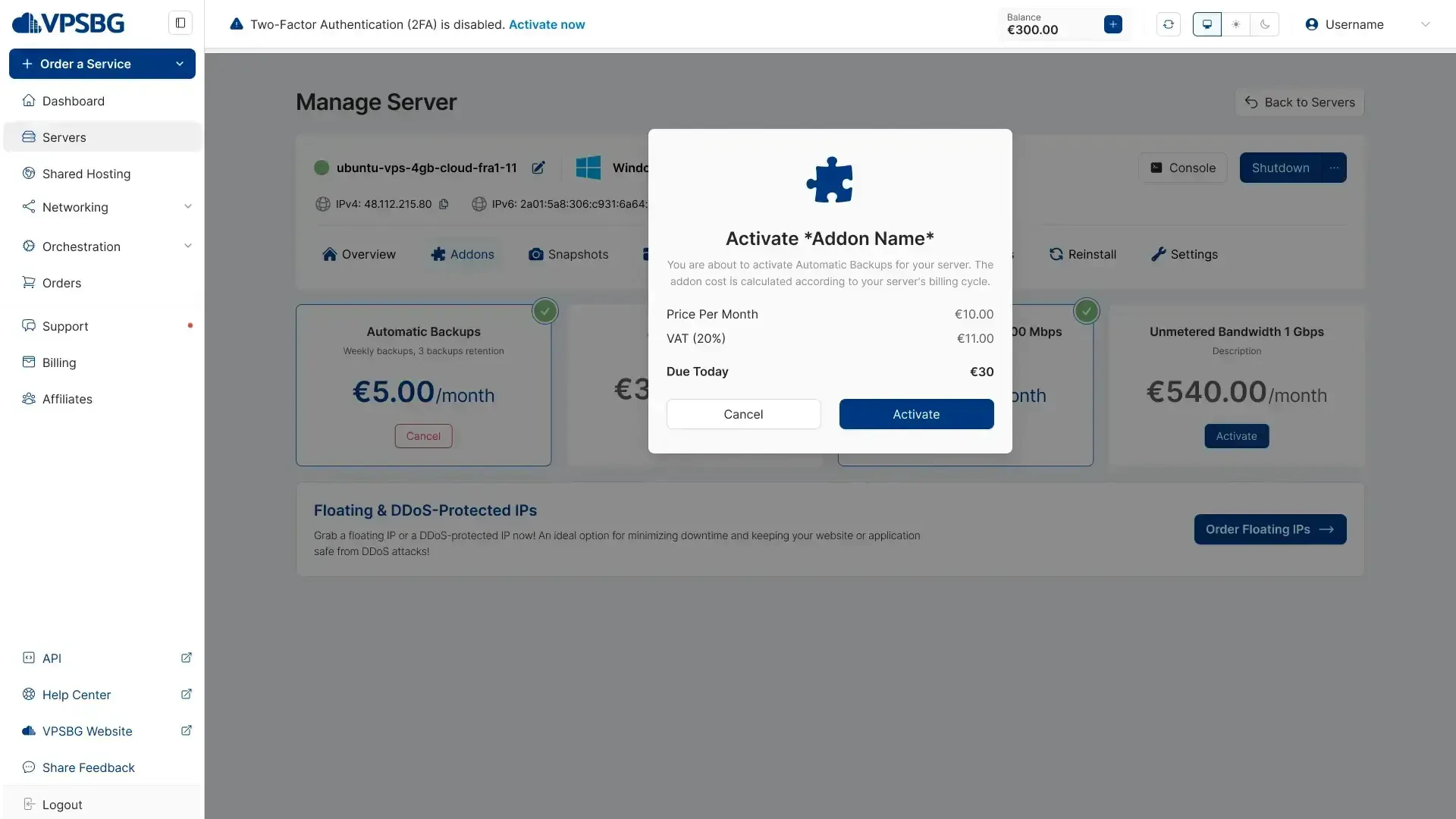
You will be presented with a confirmation message that will notify you about the price of the addon. Our addons’ billing cycles automatically align with the billing cycle of your server.
activate backups

It is important to note that the price above the button is calculated by the following formula - 0.10 EUR multiplied by the storage space that your server has (based on your server plan) multiplied by the current amount of days left of your service divided by 30 and finally multiplied by the given tax rate.

Furthermore, if your service is expiring in less than 20 days, then you can activate the feature for free. Moreover, it is also vital to know that if you have enabled automated backups and you decide to opt out of the feature, backups will be preserved for 3 weeks from the date they were made.

Also, keep in mind that a backup will be made automatically once a week with only 3 backups being kept in total, meaning that your oldest backup will be from 3 weeks ago.

That’s it! We hope that this tutorial has helped you to successfully initiate the automated backups feature for your server.

Subscribe to Our Newsletter

Join 5000+ subscribers and receive helpful content, deals and more! We promise no spam - 100% great content. Unsubscribe anytime.

Share Article

Related Content

01 April 2025

How to perform AMD SEV-SNP attestation inside a guest virtual machine

In this tutorial, we are going to show you how to perform AMD SEV-SNP attestation inside a guest virtual machine to verify trust and security.

#Tutorial#SEV
19 July 2023

How to install Windows on a cloud server

In this tutorial, we are going to show you how to install Windows OS on your cloud server from an ISO file with Windows Server 2022 & VirtuIO drivers.

#Tutorial#Windows
15 January 2023

How to set up Laravel Forge on your VPS server

Learn how to install Laravel Forge on your VPS or VDS and start managing your Linux server. Deploy PHP applications and databases with ease.

#Tutorial#Laravel

Unrivaled Performance & Security

Deploy a powerful and reliable Cloud VPS today to ensure your privacy. SEV-SNP included for maximum protection.

Configure VPSContact Us