NewExtra server protection with Measured Boot & UKI images.View Measured Boot
BlogDocumentationFAQNo Third-Party CookiesContact Us
  • Pricing
Log inSign up
Cloud VPSVDSMemory-Optimized VDSStorage-Optimized VDSWindows VPSBitcoin VPSDDoS ProtectionPrivate Networking (VPC)Floating IPsAdditional Server SupportMicrosoft LicensesDatacenterNetworkDocumentationFAQNo Third-Party CookiesConfidential ComputingSelf-Hosted VPNBlogAboutBrand GuidelinesAffiliatesContact UsLegal & Compliance

Products

  • Pricing
  • Cloud VPS
  • VDS
  • RAM-Optimized VDS
  • Storage-Optimized VDS
  • Windows VPS
  • Bitcoin VPS
  • DDoS Protection
  • Private Networking (VPC)
  • Floating IPs
  • Microsoft Licenses
  • Additional Server Support

Explore

  • Documentation
  • Developers API Docs
  • FAQ
  • Datacenter
  • Network
  • Looking Glass
  • Confidential Computing
  • Cookie Policy
  • Self-Hosted VPN

Company

  • Blog
  • Contact Us
  • About Us
  • Brand Guidelines
  • Affiliates

Legal & Compliance

  • Terms of Service
  • Privacy Policy
  • Data Processing Agreement
  • Acceptable Use Policy
  • Microsoft Software Terms of Use
  • Refund Policy
  • Report Abuse

Products

  • Cloud VPS
  • VDS
  • RAM-Optimized VDS
  • Storage-Optimized VDS
  • Windows VPS
  • Bitcoin VPS
  • DDoS Protection
  • Private Networking (VPC)
  • Floating IPs
  • Microsoft Licenses
  • Additional Server Support
Pricing

Explore

  • Documentation
  • Developers API Docs
  • FAQ
  • Datacenter
  • Network
  • Looking Glass
  • Confidential Computing
  • Cookie Policy
  • Self-Hosted VPN

Company

  • Blog
  • Contact Us
  • About Us
  • Brand Guidelines
  • Affiliates

Legal & Compliance

  • Terms of Service
  • Privacy Policy
  • Data Processing Agreement
  • Acceptable Use Policy
  • Microsoft Software Terms of Use
  • Refund Policy
  • Report Abuse

© VPS.BG Ltd. 2026 · All rights reserved!

Made with passion in Bulgaria · VAT ID: BG203144520

Contents

  • How to download a full backup through cPanel
  • How to generate an instant backup

Subscribe to Our Newsletter

Join 5000+ subscribers and receive helpful content, deals and more! We promise no spam - 100% great content. Unsubscribe anytime.

Share Article

#CPanel
  1. Documentation
  2. /
  3. #CPanel
  4. /
  5. How to create and download a website backup through cPanel

How to create and download a website backup through cPanel

Published: 11 February 2021 • Updated: 27 May 2026 • 3 min read

#Tutorial#CPanel#Security

Regular backups are crucial if you wish to avoid any damage to your website. This can protect you from hackers, server failure and any other potentially harmful issues that can have a negative impact on your website or application.

In this tutorial we are going to show you how to create and download a full archive backup of your website through cPanel.

How to download a full backup through cPanel

Firstly, you need to log into your cPanel. To do this, navigate to your domain or subdomain, followed by ‘/cpanel’ like so:

‘mydomain.com/cpanel’

With our shared hosting services, you can also log into cPanel through your VPSBG client area. Next, go to the ‘Services’ section and select the service which you would like to access. Then, go to ‘Details’ and click on ‘Control panel’ as illustrated in the following image:
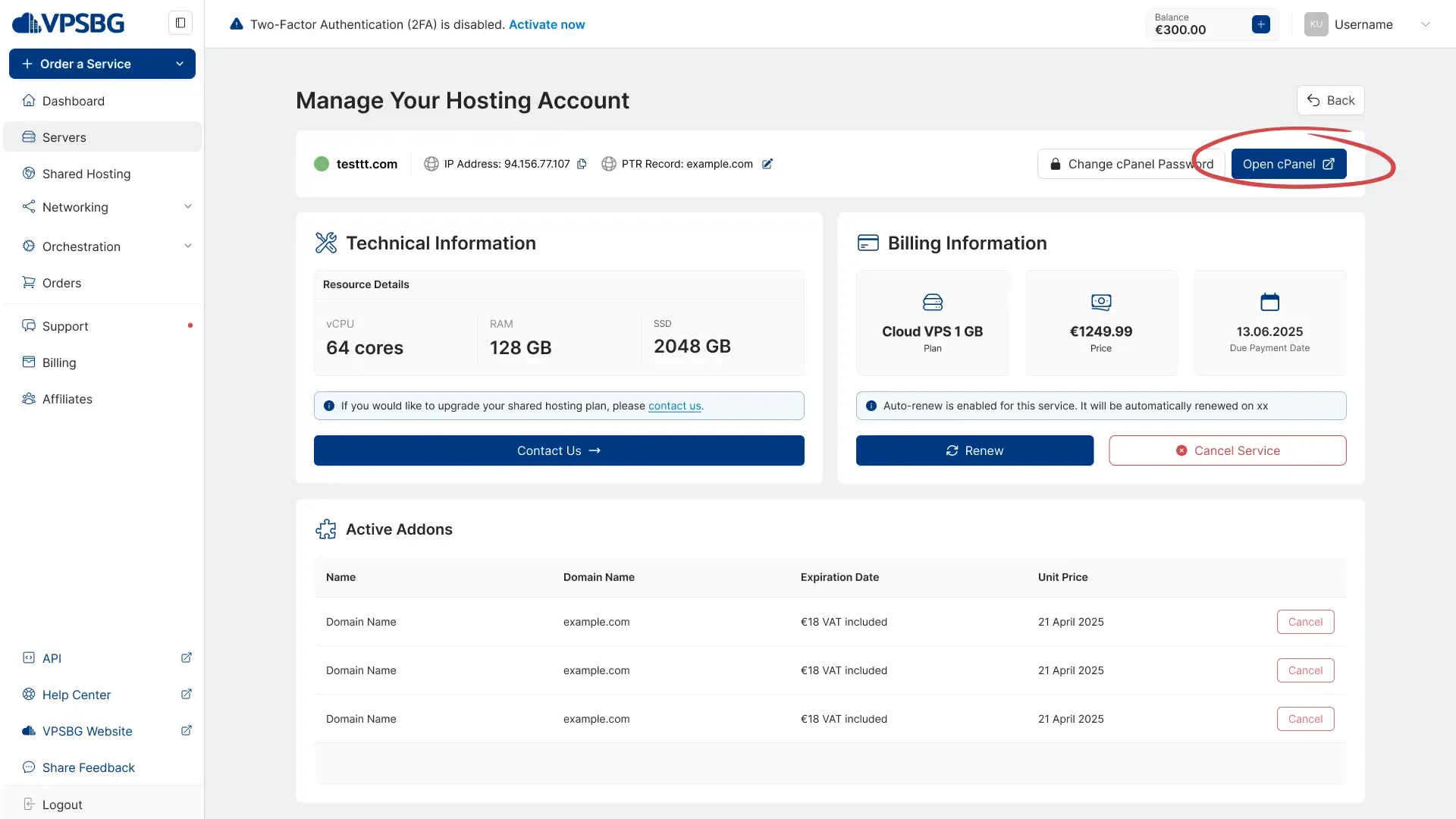
open up cPanel

After you have successfully logged in, go to the ‘Jetbackups’ tab and click on ‘Full Account Backups’ as shown:

full account backups

You will then be presented with a list of all available backup archives that have been automatically created for your website. From here, select the archive that you would like to download and click on the ‘Generate Download’ button like so:

generate download file

Once you have clicked the generate button, you will be shown a new window, which will be requesting confirmation and you will need to click on ‘Add to Download Queue’. When the request has been processed, your backup will begin to download. This can take quite some time, depending on the size of your archive. You can manually monitor the process by going to the ‘Queue’ section of the Jetbackups tab on the cPanel main page.

add to queue

When the extraction has been completed, you will be able to download the archive from the same page. All you have to do is to click on the ‘Download’ button.

download the backup

How to generate an instant backup

In some cases, you might want to instantly create a backup of your website due to reasons such as testing or content issues. In order to create an instant backup you need to log into cPanel and then select the ‘Files’ tab. From there click on ‘Backup’:

create instant backup

Next, click on the ‘Download a Full Account Backup’ button on the newly opened page and you should be presented with the following section:
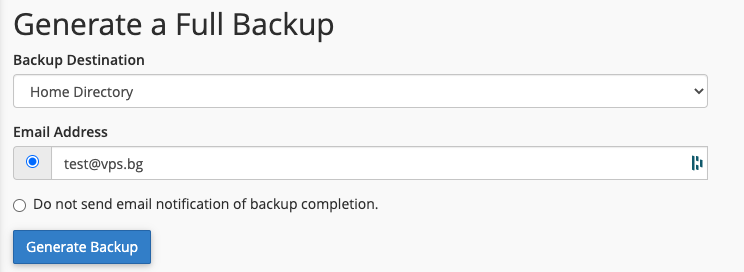
configure your backup

You can then select the download destination for your backup with some of the possible options being:

  • a local folder or in your /home directory
  • an external server through FTP
  • SCP

You will need to enter additional information such as remote connection details depending on the directory or method that you wish to utilize.

You also have to enter your email so that you can be notified when the backup has been completed and is ready for download.

IMPORTANT: Please, keep in mind that creating a backup archive will require approximately the same amount of disk space that you are currently using. The exact size cannot be determined in advance due to the different compression ratios. Because of this, it is important to ensure that you have the needed space.

If you encounter any issues or have any further questions, you can always contact us!

Subscribe to Our Newsletter

Join 5000+ subscribers and receive helpful content, deals and more! We promise no spam - 100% great content. Unsubscribe anytime.

Share Article

Related Content

14 September 2022

How to set a specific PHP version for different directories

Learn how to set custom PHP versions and options for different directories or folders on your website or application using cPanel.

#Tutorial#CPanel
23 September 2021

What is an addon domain and how to add one to your shared hosting account using cPanel

In this tutorial you will learn what an addon domain is, how to create it using cPanel and when it is appropriate to make use of one.

#Tutorial#CPanel
23 February 2021

What is DKIM and how to create a DKIM record

DKIM records are a method used to secure your emails, increasing your domain reputation and reducing the chances of your emails being flagged as SPAM.

#Tutorial#Email

Privacy-First Cloud Hosting

Looking for a powerful and secure cloud server that respects your privacy? Take a look at our SEV-SNP powered virtual machines!

View PricingContact Us