How to connect to your Windows VPS
Published: 13 February 2026 • Updated: 05 July 2026 • 4 min read
You’ve gone ahead and purchased a Windows VPS or VDS but are unsure on how to log in? In this tutorial, we are going to guide you, step-by-step on how to connect to your Windows server through the help of the Remote Desktop Service (RDS) from your Windows, macOS or Linux machine so that you can safely transfer files, add additional users or manage your system.
How to connect from Windows
Since you are already on a Windows machine, the process here is really simple. All you need to do is first hold down the Windows key on your keyboard and then press R. This will bring up the Run application from your windows machine. Next, type in mstsc and hit enter.
You can alternatively go to Search and type in “Remote Desktop Connection” and click on the application shown.
You should now see the following screen:
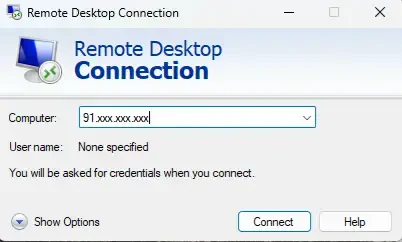
In the “Computer” field, enter the public IP address of your VPS and click Connect.
When prompted for credentials, enter Administrator (or your custom user) and the password for your Windows VPS. If the login fails, try using “.\Administrator” instead.
You might see a certificate warning. If you do, then simply accept it. That’s it! You should now see the Windows desktop of your VPS.
How to connect from Linux
When it comes to accessing your Windows server from a Linux-based machine, we recommend using Remmina as it is available for most Linux distributions. Here’s how to install it.
First make sure that you have snapd installed. Next, install Remmina with:
sudo snap install remminaIf you are running a different distribution that doesn’t support it or want to look for alternative installation methods you can always visit Remmina’s official installation tutorial.
Once installed you can open Remmina and click on the New connection button, located in the top left corner.
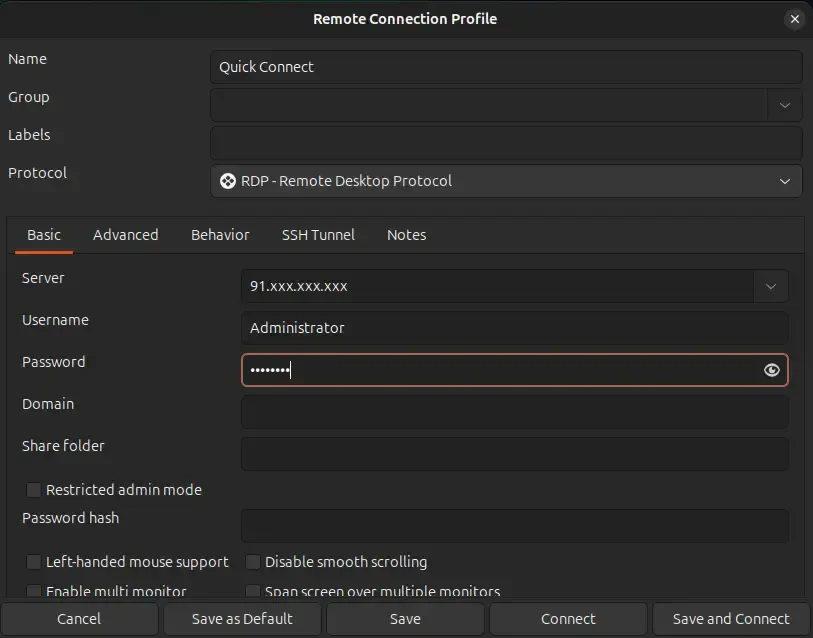
Next, in the Protocol field, select RDP - Remote Desktop Protocol. Enter your public IP address of your server into the Server field. Your username and password are going to be your Windows credentials. Finally, click on Save and Connect.
How to connect from macOS
Unfortunately, macOS does not have a built-in RDP client, so you will need to install Microsoft Remote Desktop from the App Store.
To do this, you will need to install the Windows App (previously known as Microsoft Remote Desktop) from the Mac App Store.
When you’ve installed the app, simply open it and click on Add PC. In the PC name field, enter the public IP address of your VPS and click on click on Add. Double-click the saved connection. Enter your username and password when prompted. That’s it!
Common issues and how to resolve them
While powerful, Windows Server is very prone to some common problems. If you happen to run into any, here’s a few quick tips on how to try resolving them.
Remote Desktop can’t connect to the remote computer
Common causes:
Your VPS is stopped or restarting
RDP is not enabled inside Windows
the firewall blocks port 3389
the network configuration of the virtual machine is incorrect
The solutions here are very simple. Firstly, make sure that the VPS is running. If it’s stopped, restarting on there is something wrong with the server, your connection will be disrupted. Next, ensure that you are connecting to the correct IP address. You can easily copy the server’s IP from the VPSBG Console by clicking on it. Finally, check if you’ve recently made changes to the network settings or templates and reboot the server. This should usually fix things.
Black screen after login
A very common problem that doesn’t require much in terms of effort to fix. This is because the problem is generally Windows display or user session-related. Simply disconnect from the current session and reconnect. If it happens again, try rebooting the VPS.
Account is locked
If you try logging in multiple times with a wrong password, Windows may automatically lock the account. In this case, you must manually reset the password from the VPSBG Console.
Connection immediately closes
If your connection immediately closes, then the potential problem here might be a corrupted RDP session, a Windows update that is currently running or a broken user profile. Wait for a couple of minutes and restart the VPS.
The security account manager (SAM) or LSA server was in the wrong state
If you get this, then you need to know that it’s an internal authentication service problem. Again, the most common solution for this is to restart the VPS and try again, but if the problem persists, additional support will be needed.
If these fixes don’t work, you can always reach out to our dedicated support team and they will help you get things up and running again.