How to manage a VPSBG cloud server with WordPress
Published: 26 February 2023 • Updated: 20 February 2026 • 4 min read
WordPress is the most popular content management system worldwide. Due to its intuitive interface, simplicity and abundance of resources in terms of themes, templates and plugins, it is not surprising that its user base is constantly expanding.
Because of this, we at VPSBG have made a special WP template that you can utilize to install the famous CMS on your cloud server with just a few clicks!
How to complete the WordPress installation
When you get a cloud server with the WordPress application template, the software will be automatically deployed onto your instance. To complete the setup, you will need a domain name which is pointed to your server IP address.
How to point your domain to your WordPress server
If you don’t have a domain, you’d need to purchase one from a domain name registrar. Currently, this is not possible from our website, as we do not offer this service, however, there are many different registrars that you can find online.
To point your domain to your WordPress server, you'll need to follow these general steps:
- Get the IP address of your WordPress cloud server. To do this navigate to the Client Area section of our website. Go to the services tab and search for the IP address of your server. Alternatively, you can find your server’s IP address in your service activation email.
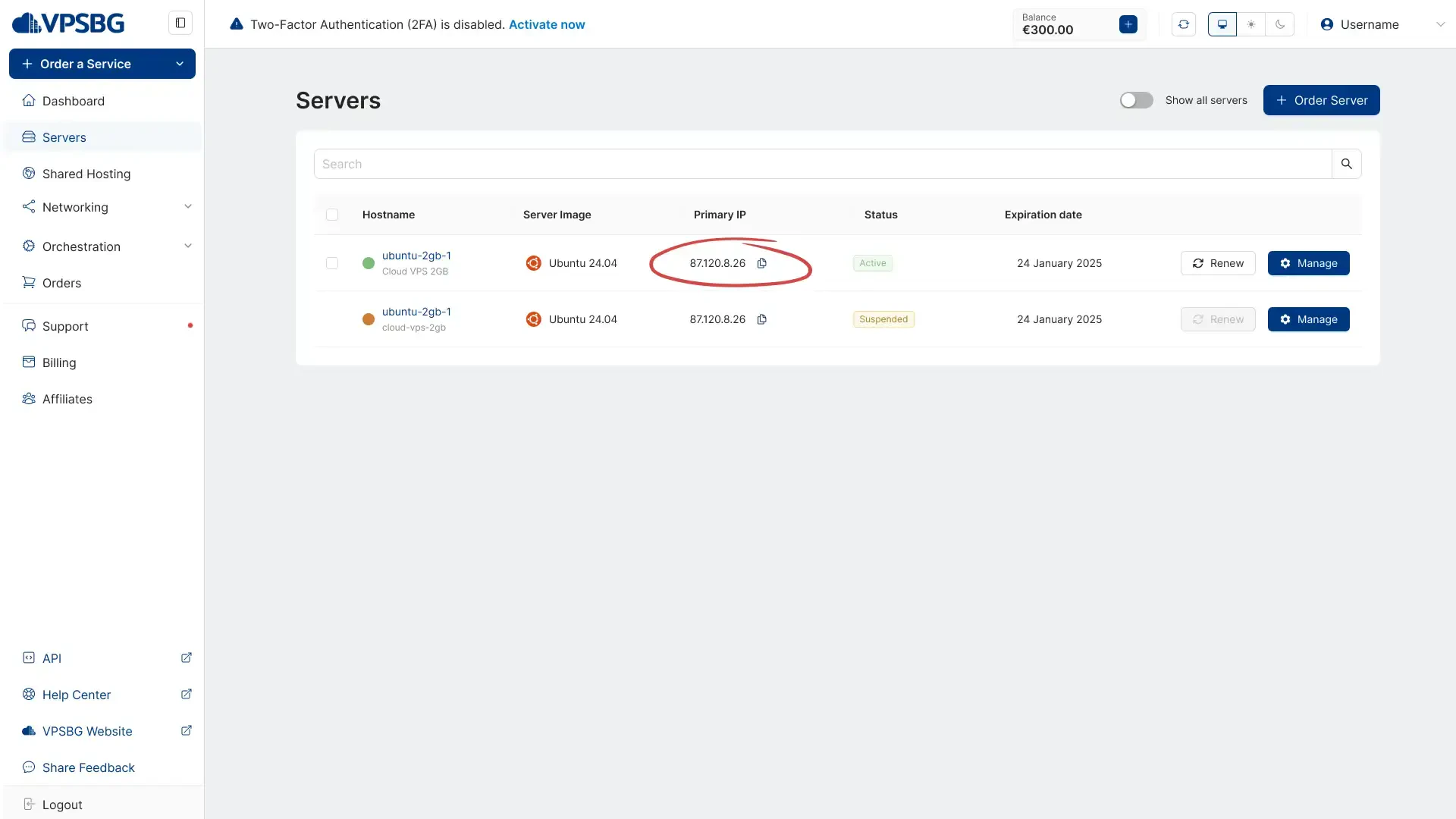
- Log in to your domain registrar account, which is the place from which you have purchased your domain name.
- Look for the DNS (Domain Name System) settings or a DNS management menu section.
- Add a new ‘A’ record (which stands for Address record) or modify an existing one.
- Enter the IP address or domain name of your WordPress server in the record's value field.
- Save the changes and wait for the DNS changes to come into effect. This could take up anywhere from 24 to 48 hours due to different factors. Generally, the changes take less than an hour to apply.
- To check that everything is set up correctly, you can use the DNS Propagation Checker tool.
It is important to mention that the steps may vary depending on your domain registrar's user interface as well as the specific domain management tools that you're using.
Finalizing the WordPress installation
To finish the installation, you need to connect to the server via SSH. The server will then ask about your credentials and additional information such as your domain name, email address, WP Admin username and password. The installation will conclude after you have successfully filled in all of the required fields.
After successfully entering the required information, a short installation will follow, the log of which will be visible in the console as shown in the following image:

You will be asked whether you would like to issue an SSL certificate for your website. If you do, please type ‘yes’ and the system will install the SSL certificate for your website.You can also do this at a later stage.
You can access the website in the browser via http(s)://exampledomain.com, given that you have already purchased a domain and pointed it to your new server here.
To access the admin panel, simply append "/wp-admin" to your domain like so: http(s)://exampledomain.com/wp-admin. The credentials you enter into the console during the installation process will be used for the admin panel.
How to issue an SSL certificate for your domain at a later point
You can always issue an SSL certificate for your website by executing the following command in the server console: /root/enable-ssl.sh
How to migrate your WP website
Migrating your WP website can be done quite easily. There are many different plugins currently available that can completely transfer your website to another server without you having to worry about anything.
A good example is the All-in-one WP migration plugin, as it requires minimal technical knowledge or experience, allowing you to migrate your website with just a few clicks. You can check out our step-by-step tutorial on how to use the plugin.
If you run into any issues while migrating your website, you can always contact our 24/7 support team for further assistance!
WordPress installation script
VPSBG values your privacy and wants you and your personal information to be secure at all times. We want to remain completely transparent when it comes to all of our application templates and the installation scripts that we use to set up each app on your cloud server.
Because of this, we are providing the installation script, which you can find in our VPSBG GitHub repository for both Debian and Rhel.