How to secure your Windows VPS server
Published: 14 April 2024 • 4 min read
Over the last few decades, Windows cloud servers have been slowly gaining popularity because of their intuitive user interface and their beginner-friendliness. Not only that, but Microsoft has also been stepping up their game, releasing more frequent updates, ensuring that your server will remain protected.
However, if you wish to keep your server secure at all times, there are a few extra steps that you can take in order to guarantee that your server and data are going to be constantly protected. Here’s 3 things that you can easily implement in order to take your Windows VPS server’s security to the next level!
Keep your Windows VPS up to date
When it comes to securing your Windows VPS, the first thing that you need to always be mindful of is to keep your operating system up to date. Microsoft frequently releases updates to fix vulnerabilities, improve performance as well as to add new features. While some people tend to avoid updating, it is important to remember that updates are released in order to improve not only your user experience, but to also ensure that your server remains secure against the latest threats and exploits. Here’s how to manage Windows updates.
Navigate to Settings and locate Update and Security.
If there are pending updates, you will see an Install now button. If you don’t have the button present, we suggest manually checking for any updates by clicking the Check for updates button.
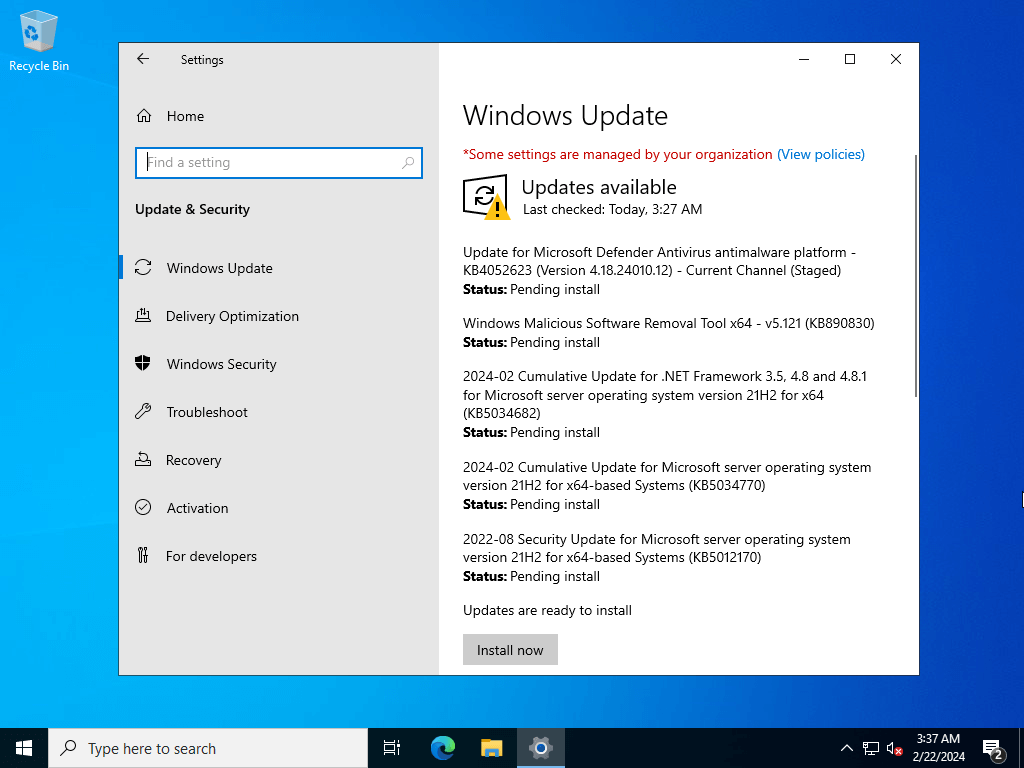
Review the available updates and click on the Install now button. This will begin the installation process.
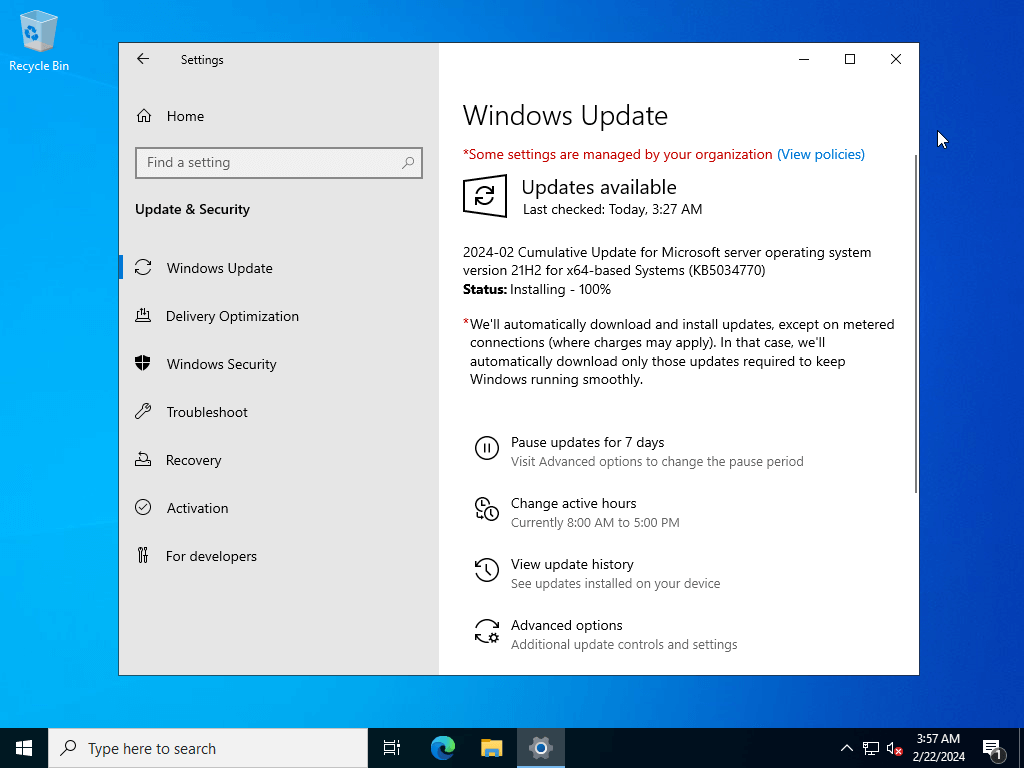
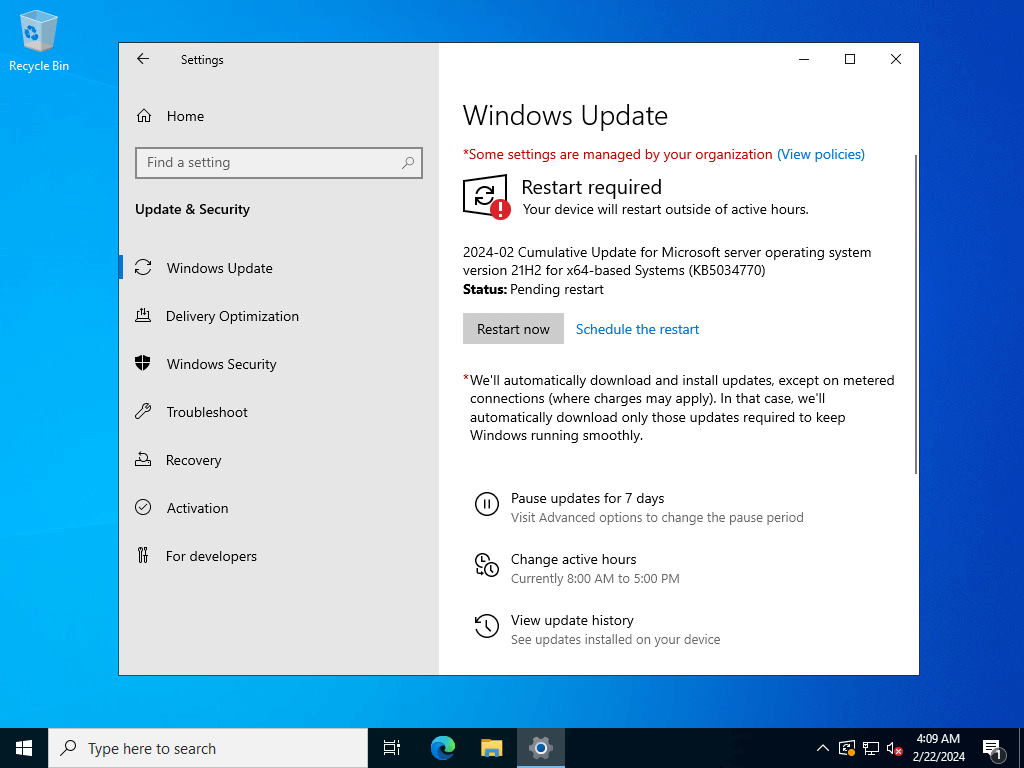
After the update has been successfully installed, you will be prompted to restart your Windows server. You can either do it after the installation or just schedule it for later, but it is important to restart in order for the updates to apply.
Use a strong password for your RDP connection
Most Windows VPS servers come equipped with a RDP (Remote Desktop Protocol) connection which you can utilize in order to manage your server remotely. While extremely useful, this can also be a potential entry point for attackers. This is why you need to ensure that the password that you use when entering your server is strong - combine a mix of letters, numbers, special characters and make it at least 12 characters long. So if your RDP password is not secure enough, here’s how you can update:
Press Ctrl + Alt + Del and select Change a password:
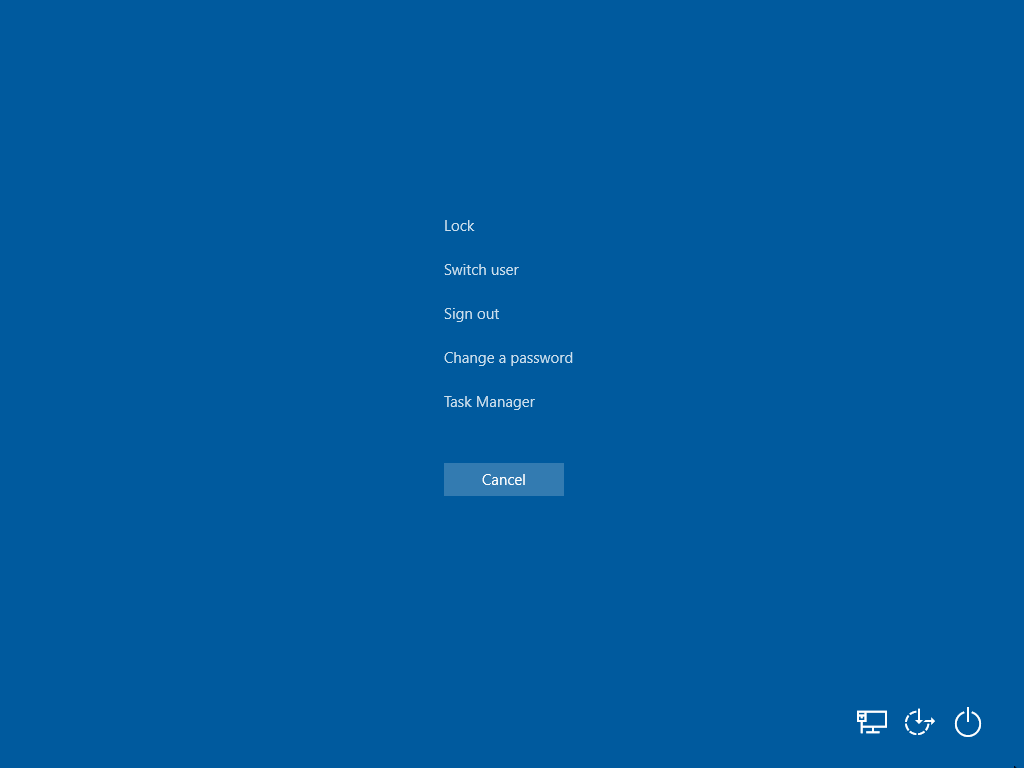
Enter your old password and then the new one twice in order to confirm it:
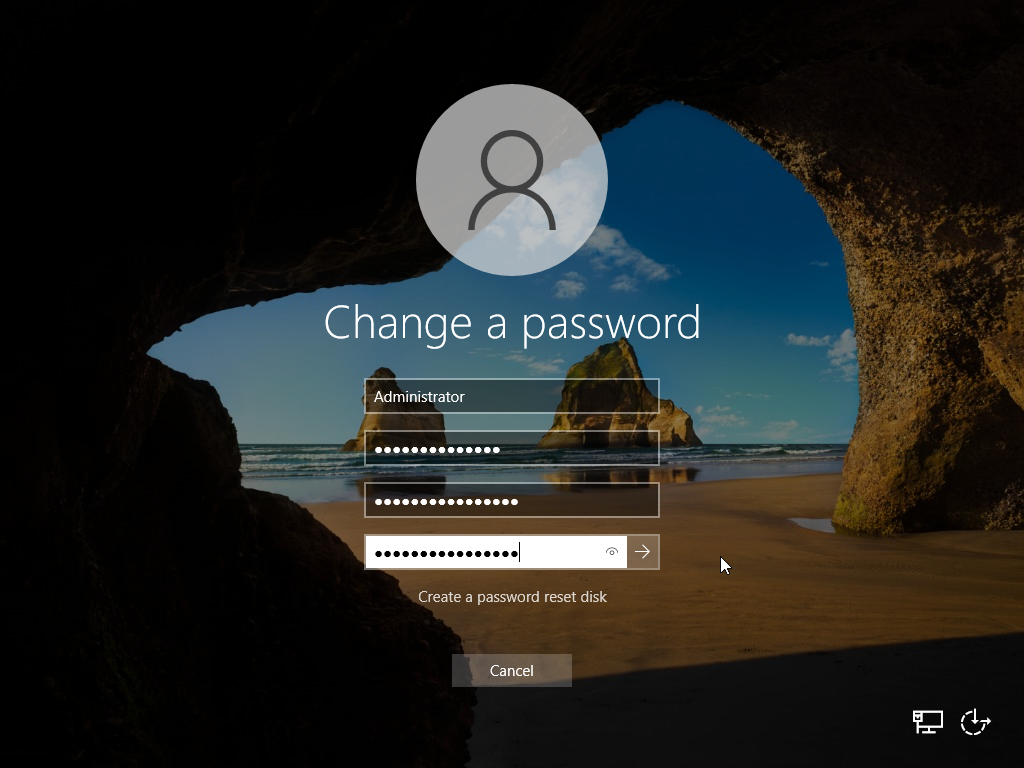
Click on the little arrow and that’s it! You can now log in with your new password via RDP.
Use Windows firewall
A firewall acts as a barrier between your Windows VPS and the public internet, controlling incoming and outgoing network traffic based on pre-applied user rules. Configuring your server's firewall can significantly reduce the risk of cyber attacks such as brute forcing or port scanning. Here’s how to configure the Windows Firewall.
Open Windows search and type Firewall & Network protection and click on the first result.
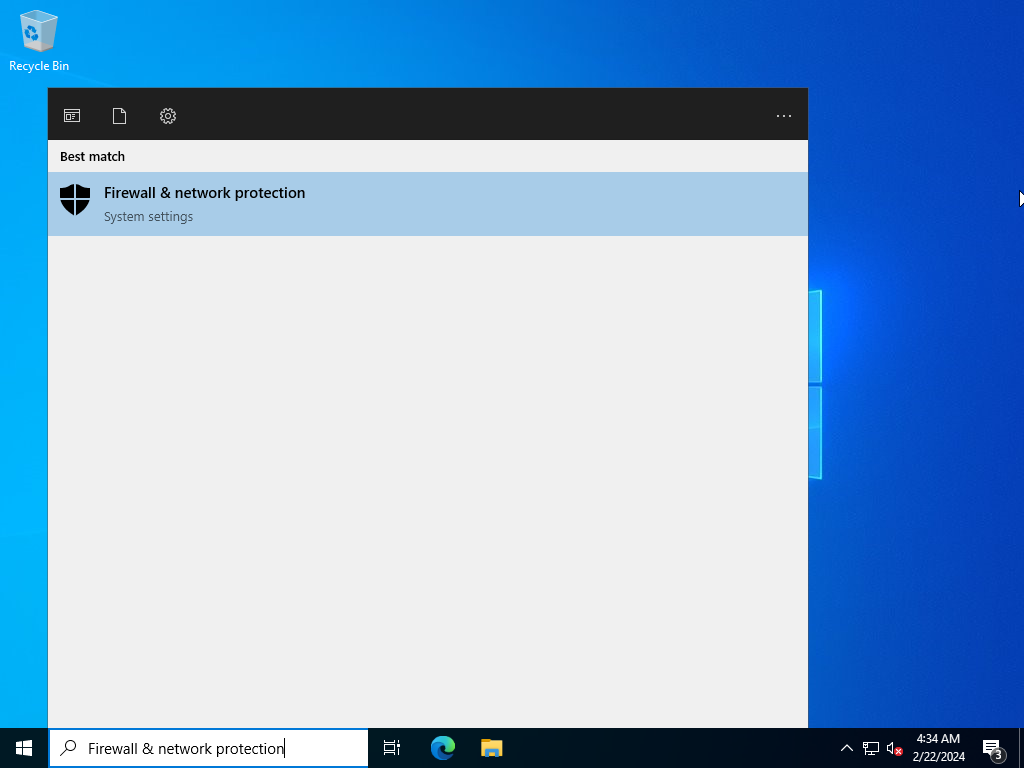
The newly opened window will contain the Firewall dashboard. To edit inbound and outbound rules, navigate to Advanced settings:
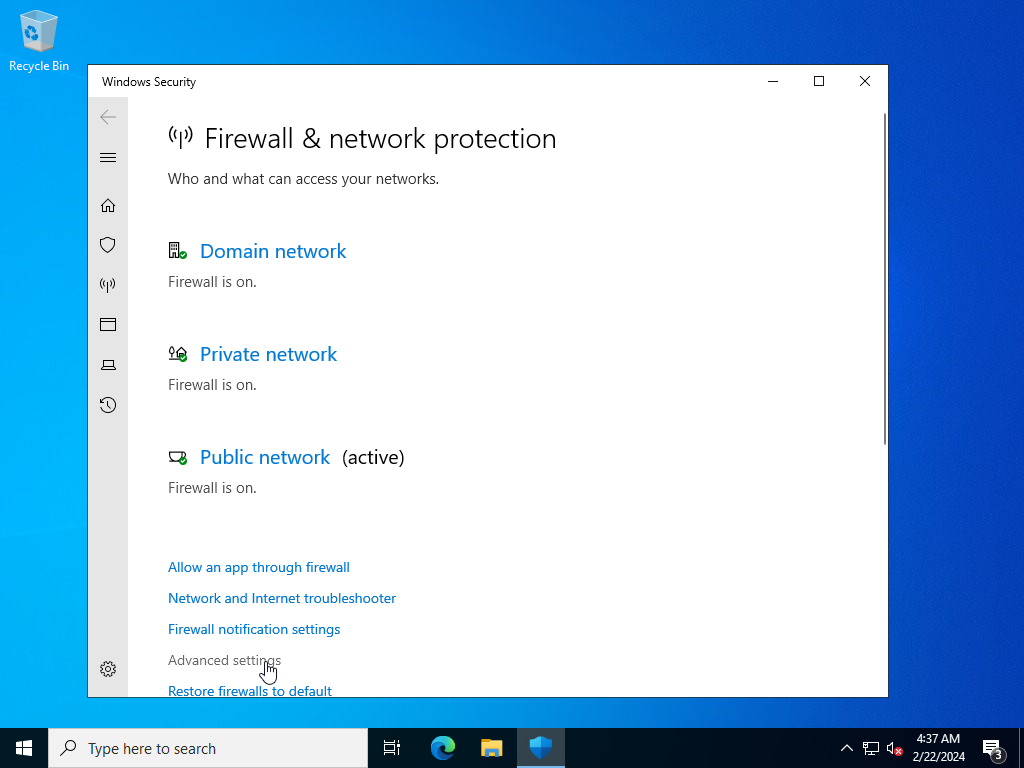
This will open the overview of the Windows Firewall ruleset. To view the current rules, click on either Inbound or Outbound Rules.
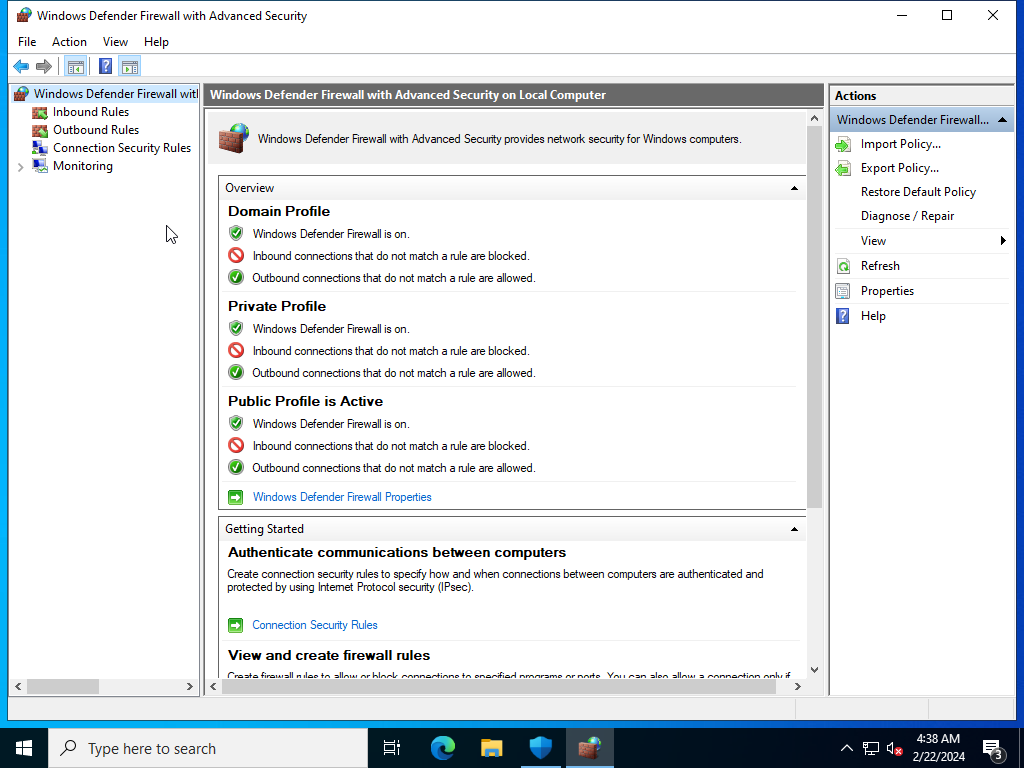
All current rules will be shown.
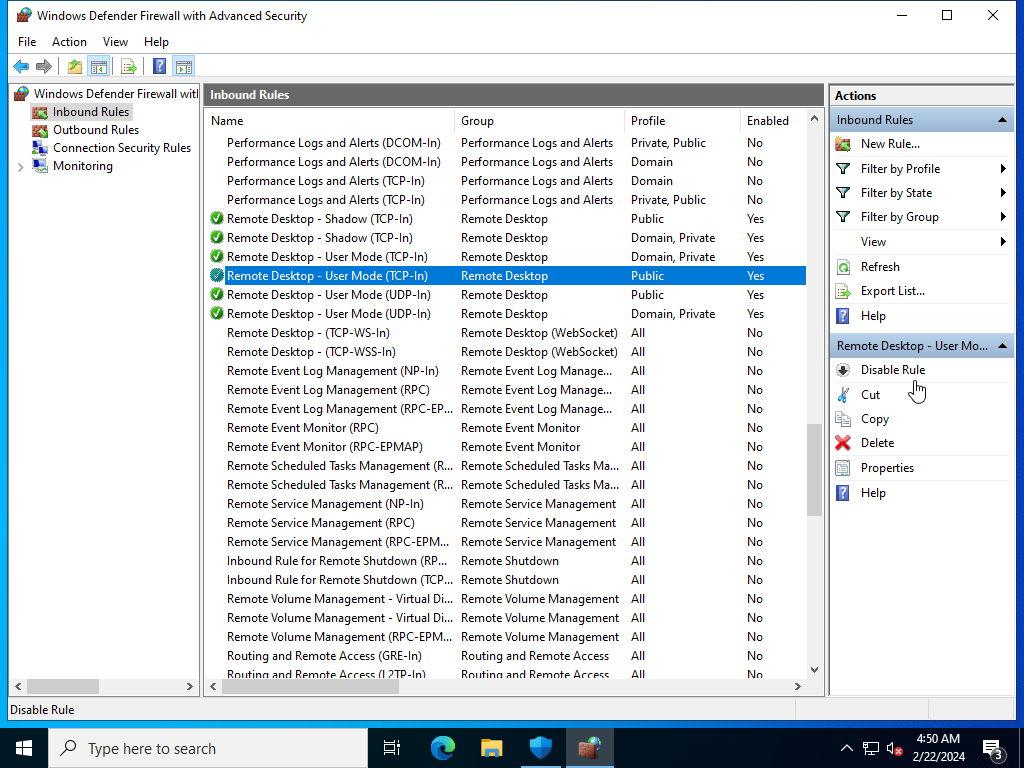
From here you can edit rules based on your preferences. We will now whitelist our IP address that we use to set up an RDP connection. This will allow only connection from our IP address to access the Windows VPS. Navigate to Inbound Rules and find the Remote Desktop - User Mode (TCP-In) rule for the Public profile.
Double-click it and navigate to Scope. In the Remote IP address section select These IP addresses and add your desired whitelisted IP addresses. Finally click on Apply:
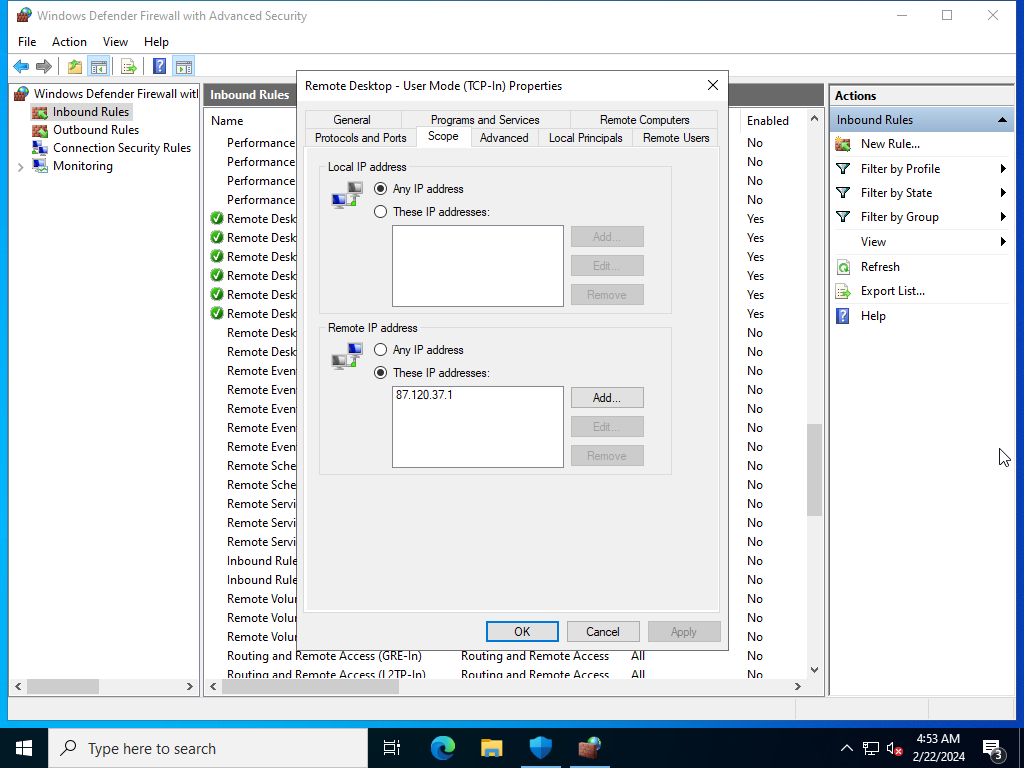
Your Windows VPS should now only be accessible via RDP from the specified whitelisted IP addresses.
Use a VPN
Using a Virtual Private Network (VPN) is an effective way to strengthen the privacy of your Windows Server. A VPN encrypts the data traffic on your server, making it much harder for hackers to intercept and understand the data via attacks such as man-in-the-middle (MITM). While specifics vary depending on the VPN solution, the key steps include installing VPN software, configuring it to suit your security needs, and ensuring all remote connections use the VPN.
While we do offer an in-house VPN solution for our Cloud VPS servers that are running on Linux with our Wireguard App Template, you can also manually download and install WireGuard on your Windows virtual machine.