NewExtra server protection with Measured Boot & UKI images.View Measured Boot
BlogDocumentationFAQNo Third-Party CookiesContact Us
  • Pricing
Log inSign up
Cloud VPSVDSMemory-Optimized VDSStorage-Optimized VDSWindows VPSBitcoin VPSDDoS ProtectionPrivate Networking (VPC)Floating IPsAdditional Server SupportMicrosoft LicensesDatacenterNetworkDocumentationFAQNo Third-Party CookiesConfidential ComputingSelf-Hosted VPNBlogAboutBrand GuidelinesAffiliatesContact UsLegal & Compliance

Products

  • Pricing
  • Cloud VPS
  • VDS
  • RAM-Optimized VDS
  • Storage-Optimized VDS
  • Windows VPS
  • Bitcoin VPS
  • DDoS Protection
  • Private Networking (VPC)
  • Floating IPs
  • Microsoft Licenses
  • Additional Server Support

Explore

  • Documentation
  • Developers API Docs
  • FAQ
  • Datacenter
  • Network
  • Looking Glass
  • Confidential Computing
  • Cookie Policy
  • Self-Hosted VPN

Company

  • Blog
  • Contact Us
  • About Us
  • Brand Guidelines
  • Affiliates

Legal & Compliance

  • Terms of Service
  • Privacy Policy
  • Data Processing Agreement
  • Acceptable Use Policy
  • Microsoft Software Terms of Use
  • Refund Policy
  • Report Abuse

Products

  • Cloud VPS
  • VDS
  • RAM-Optimized VDS
  • Storage-Optimized VDS
  • Windows VPS
  • Bitcoin VPS
  • DDoS Protection
  • Private Networking (VPC)
  • Floating IPs
  • Microsoft Licenses
  • Additional Server Support
Pricing

Explore

  • Documentation
  • Developers API Docs
  • FAQ
  • Datacenter
  • Network
  • Looking Glass
  • Confidential Computing
  • Cookie Policy
  • Self-Hosted VPN

Company

  • Blog
  • Contact Us
  • About Us
  • Brand Guidelines
  • Affiliates

Legal & Compliance

  • Terms of Service
  • Privacy Policy
  • Data Processing Agreement
  • Acceptable Use Policy
  • Microsoft Software Terms of Use
  • Refund Policy
  • Report Abuse

© VPS.BG Ltd. 2026 · All rights reserved!

Made with passion in Bulgaria · VAT ID: BG203144520

Contents

  • How do I enable 2FA on my VPSBG account?
  • Scan the QR code

Subscribe to Our Newsletter

Join 5000+ subscribers and receive helpful content, deals and more! We promise no spam - 100% great content. Unsubscribe anytime.

Share Article

#Security
  1. Documentation
  2. /
  3. #Security
  4. /
  5. How to set up two-factor authentication (2FA) on your VPSBG account

How to set up two-factor authentication (2FA) on your VPSBG account

Published: 01 January 2020 • Updated: 02 October 2025 • 2 min read

#Tutorial#Security#VPSBG

It is crucial to keep your account safe! Granting others access to your Console can compromise your services as that is the place from which you can manage each and every one of your cloud servers! Because of this, it is important to take additional security measures in order to protect your account at all times!

We value your privacy and want to help you stay protected, which is why we have implemented a two-factor authentication system, allowing you - our customers, to add another layer of protection to your accounts by requiring a dynamic 6-digit code upon every new sign in (does not apply if you have ticked the ‘remember me’ option).

How do I enable 2FA on my VPSBG account?

To activate 2FA, you will first need to log into your account. Once you have successfully signed in, you will need to navigate to the ‘My Profile’ page. Next, select the ‘2FA’ section and follow the instructions as illustrated below:
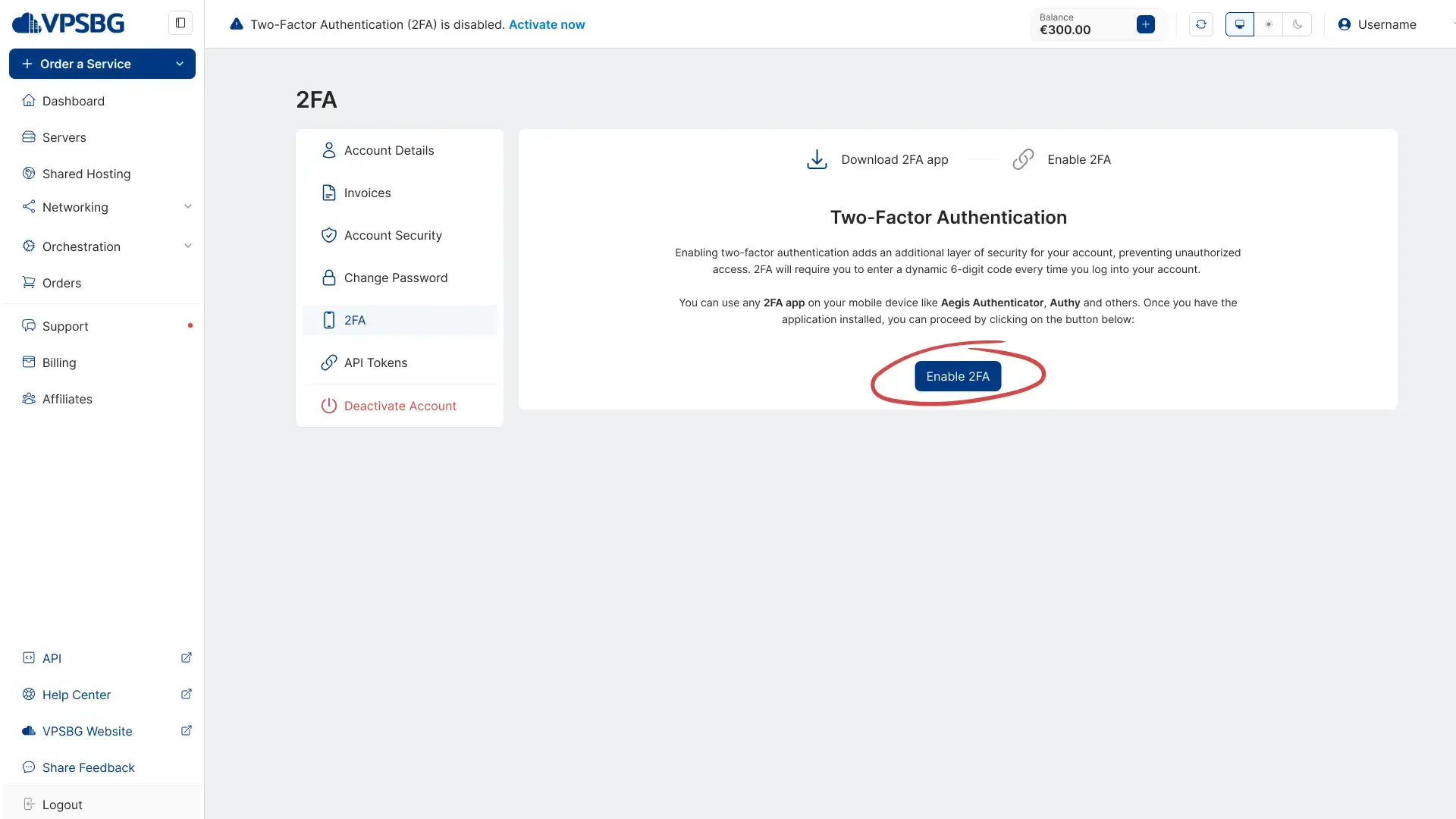
select 2fa

You will need to download a 2FA mobile application such as Google Authenticator or Authy.

Google Authenticator download links: Android, iOS

Authy download links: Android, iOS

Scan the QR code

Once you have downloaded and installed the 2FA application of your choice on your mobile, you will need to scan the QR code from our website. Simply open up the app, align the code with the field on your screen and everything will be automatically set up. You should now see your VPSBG account in your app. Next, enter the code from your phone into the Console to finish the activation process and your account should now be protected! Now, on every new sign in, you will be required to also enter the dynamically generated 2FA code alongside your email and password. If you wish to disable the 2FA protection, you can also do so from the same place in My Profile.

If you experience any problems while setting up the 2FA authentication for your account, don’t hesitate to contact our support team!

Subscribe to Our Newsletter

Join 5000+ subscribers and receive helpful content, deals and more! We promise no spam - 100% great content. Unsubscribe anytime.

Share Article

Related Content

22 June 2023

VPSBG Software Licenses & Prices

We at VPSBG offer cheap software licenses for Windows Server, extra RDS seats and Microsoft Office 2021 Standard as an official SPLA partner.

#Article#VPSBG
26 September 2022

How to pay for your server with Bitcoin

A step-by-step tutorial on how to pay for your server using Bitcoin. Pay for your servers securely and anonymously to protect your privacy.

#Tutorial#VPSBG
16 January 2023

Accepted payment methods for our services

We at VPSBG offer a number of different payment methods for our services - Bitcoin, Lightning Network, credit card and bank transfer.

#Article#VPSBG

Need Help?

Couldn't find what you were looking for? Drop us a line or open a ticket directly and our support team will help you as soon as possible.

Contact UsOpen Ticket