How to speed up your Windows VPS
Published: 26 September 2024 • 6 min read
When it comes to getting a cloud server, there are quite a few things that you need to consider, with one of them being the operating system. Over the last couple of years, Windows Server has been slowly gaining popularity due to its intuitive and familiar user interface, attracting both newcomers as well as experienced professionals.
However, the operating system is not the only thing that’s important. The server’s resources and performance are also crucial if you want your website or application to run smoothly.
This is why we are going to be covering some of the ways that you can use in order to speed up your Windows VPS.
Monitor your server resources
The first step towards optimizing your Windows VPS is to take a look at the server resources - the CPU, RAM and SSD capacity. This can help you identify any potential bottlenecks as well as any applications that might cause them.
Is your CPU usage high?
The CPU is the most important part of your server, acting as the glue that keeps everything running together. This is why high CPU usage can slow your server down as it practically affects everything due to the fact that the processor is the one that sends out instructions and operates your server’s resources.
If your CPU usage is above 80% for extended periods of time, this might be an indication that your system is trying to run a bunch of tasks at once, leading to slow application performance, delayed response times and in some extreme cases - system crashes.
In order to check your CPU performance, you can either open up Task Manager, which will display real-time data about the CPU usage or you could alternatively use the Performance Monitor which keeps track of historical data, allowing you to generate reports that you can use for further analysis. This can help you pinpoint any potential processes and applications that might be taking a toll on the CPU as well as whether or not the slow performance has anything to do with your website or application’s traffic.
Given that the CPU is the backbone of your entire system, a good tip would be to invest into a server with more CPU cores or a Virtual Dedicated Server instead.
Is your RAM usage high?
Your server’s RAM is just as important as your CPU, acting as the temporary workspace for your Windows VPS. Keeping and storing information and data that are constantly used, allows your RAM to quickly access the required instructions, providing a smooth and seamless transitions and operations for your virtual server.
However, if you don’t have enough free RAM on your VPS, the system will be forced to rely on virtual memory that is instead stored on the SSD, which will result in much slower loading times.
Similarly to the CPU, it’s crucial for you to monitor your RAM usage. You can again do so either from the Task Manager in real-time or from the Performance Monitor, which will grant you access to performance over time. By using these tools you can identify any potential memory leaks or apps that use too much RAM. This will then allow you to know whether you need to upgrade your server’s resources or whether you can just avoid using certain applications that consume an abundance of RAM.
Power Management
If your CPU and RAM usage seem normal, then you might consider another type of performance optimization - power management. Power management essentially tells the operating system whether or not to prioritize performance or energy efficiency.
There are 2 types of power management plans - the High Performance plan and the Balanced plan.
With the High Performance plan, your system will prioritize delivering processing power to ensure that the CPU is constantly working at full power, meaning less lag and faster response times. However, this plan does increase power consumption which is why it is not recommended for it to be permanently enabled. Instead, you should consider utilizing this plan when you need peak performance, for example during periods of high traffic for your website or application or when you need to perform very intense calculations.
The Balance plan, on the other hand, does exactly that - strike a balance between performance and power consumption, making it the perfect choice for general tasks and normal workloads. With this plan, the CPU dynamically changes its clock speed based on the requirements of your website or application.
If you wish to enable any of the power plans, you can do so by navigating to the Control Panel.
Scale your server
If you’ve tried monitoring your server’s resources and changing your power management plan, but you still notice that everything is running at a high capacity and your server’s still slow, then you might just not have enough resources that the system can use to deal with the incoming traffic and requests.
In such cases, you will have to scale your server by adding more resources to your hosting plan. This is a very simple process which involves changing your hosting plan in order to get more server resources and is something that most cloud VPS servers will offer as an option.
However, it is important to mention that there are 2 types of resource scaling. The first one will only scale your CPU and RAM, allowing you to keep your storage at the same capacity. This is the more optimal choice as you won’t have to completely change your configuration, meaning that you will get to keep your SSD as it is along with all of the data that you have stored. This method will give you the necessary resources while keeping you at the same capacity.
The second option is a full system scale, meaning that you get more CPU, RAM and SSD capacity. During this type of upscaling, your storage will have to be formatted, meaning that you will lose all of your data stored on the disk in the process.
Because of this, you’d need to create a full system backup which you can later use and restore onto your upscaled server. While this might seem like something that you would like to avoid doing, in some cases scaling the RAM and CPU will not be enough to make your website or application run smoothly and you will have to scale your storage as well.
Additionally, this will also result in better data retrieval speeds, quicker response times and less bottlenecks. So while scaling your server’s resources might come as an additional cost, in some situations it’s better to pay a little extra in order to ensure that everything keeps running smoothly with some extra resources for your server.
Some providers offer only one scaling option that includes all server resources (CPU, RAM and SSD). During the scaling process, the disk is not formatted and only the resources are upgraded, meaning that the system files won’t get deleted.
Optimize Windows Visual Effects
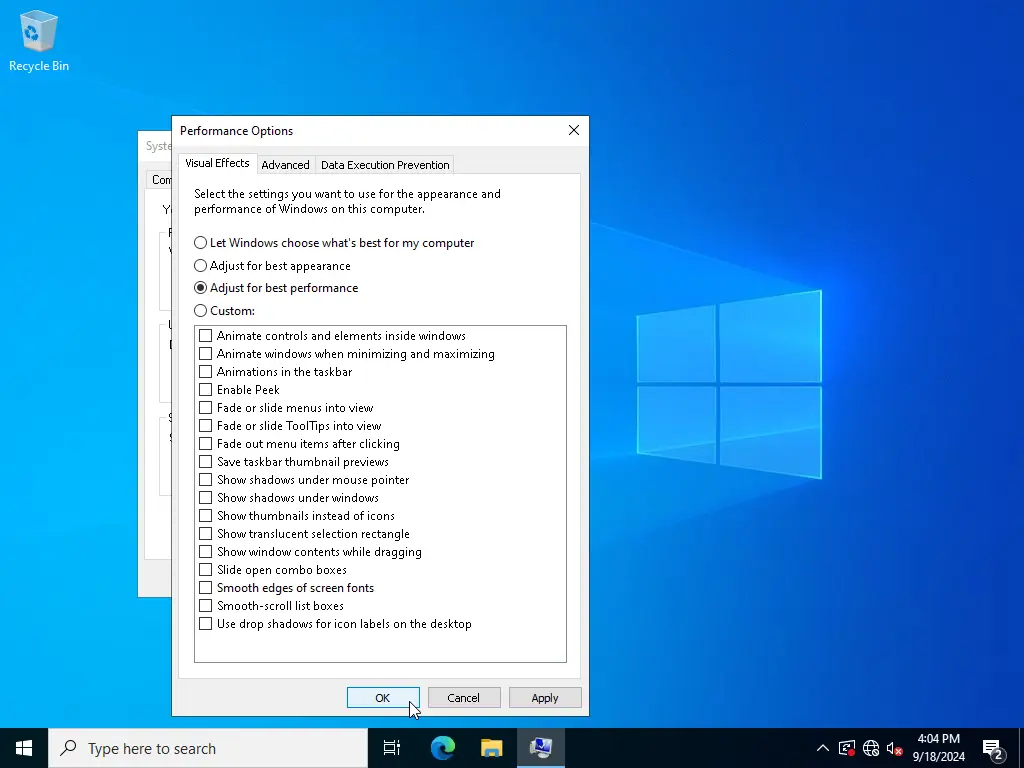
The last area to focus on is adjusting the visual effects within Windows. While these effects enhance the aesthetic appeal of the user interface, they can consume valuable system resources, potentially slowing down your VPS. To optimize performance, open the Start menu and search for View advanced system settings. From there, click on Settings under the Performance section. In the Performance Options window, choose Adjust for best performance to disable unnecessary animations and effects.